
 Galaxy CasinoGUIDE 08
Account & settings
Learn about your profile, social sign-in, inbox and switching devices.
Profile & avatar
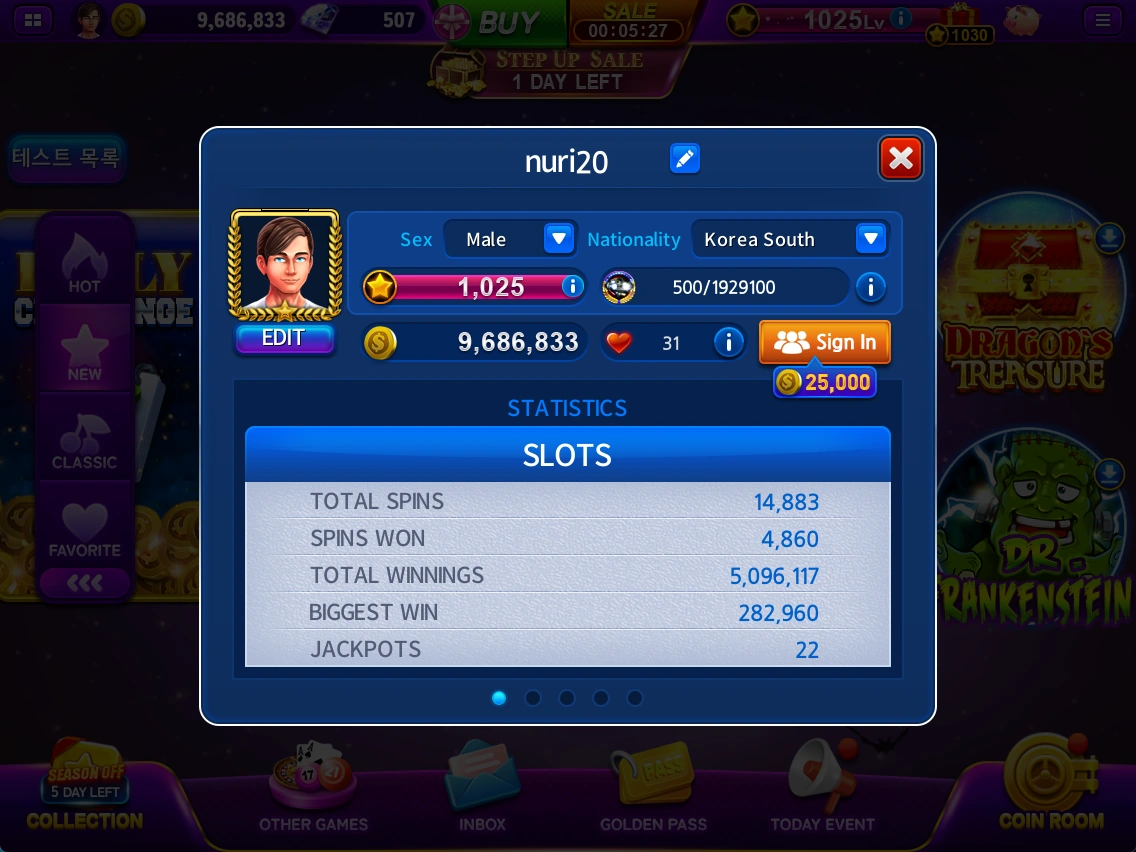
Check your nickname, level, chips, hearts and play records for each game.
- Press the pen beside your nickname to change it. You can also use Change Nickname in the menu.
- Choose your gender and country from the Sex and Nationality lists.
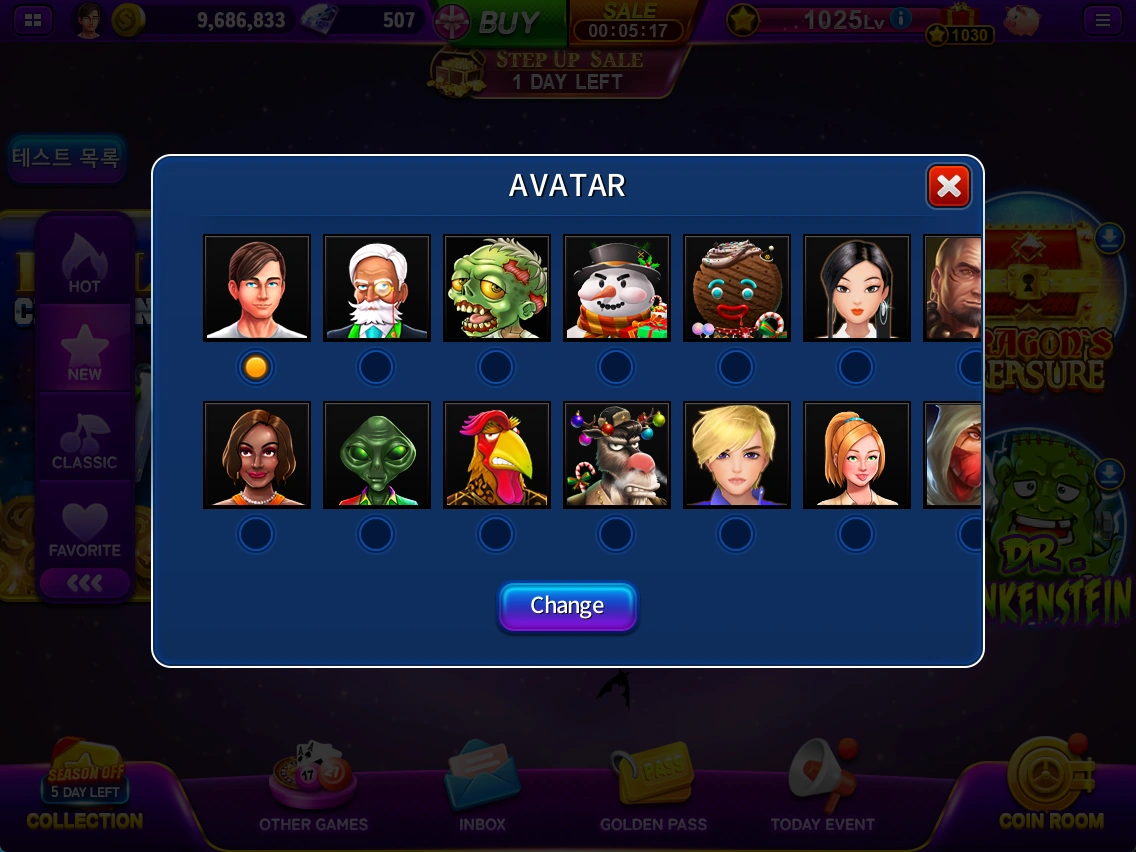
- Select EDIT below your avatar, choose an avatar and press Change.
- Browse the STATISTICS area to view records for each game.
Level & rewards
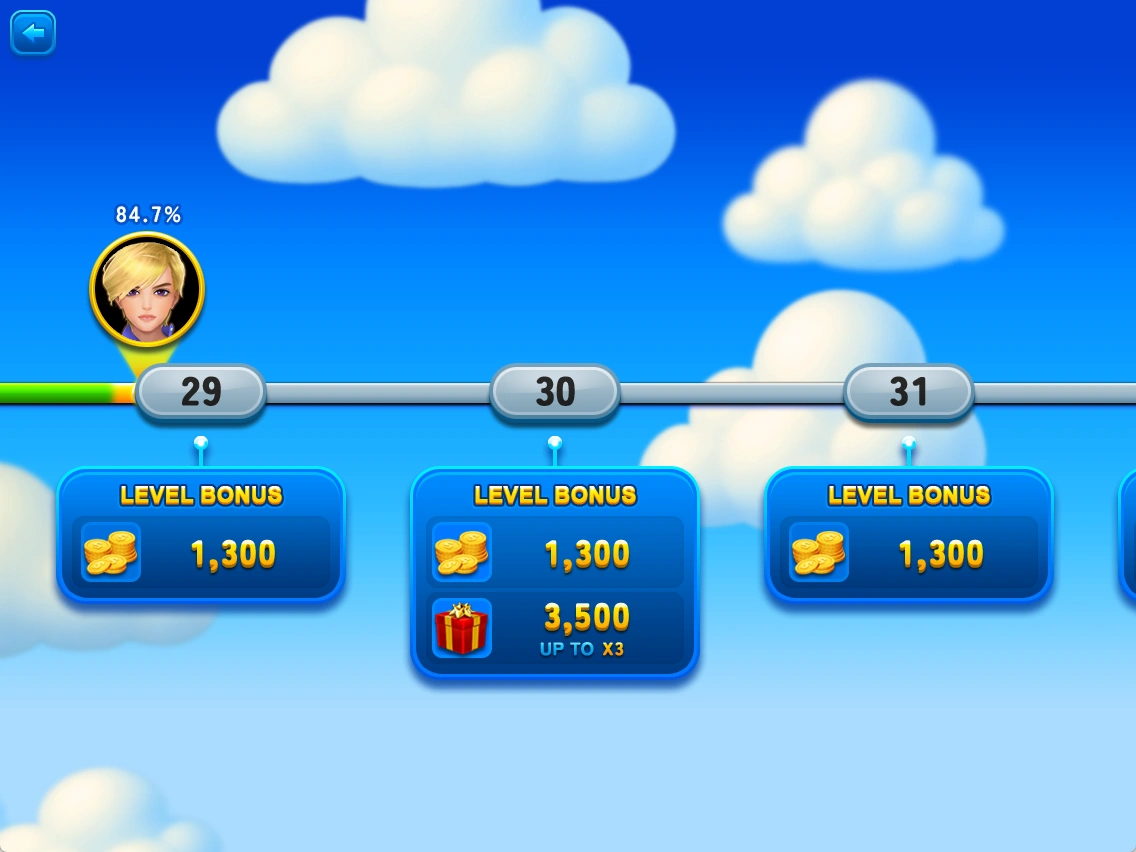
The number beside the star is your current level. Press information (i) to check the next level and its reward.
Hearts & congratulations
Celebrate big wins, level-ups and jackpots with other players. View your received hearts in your profile.
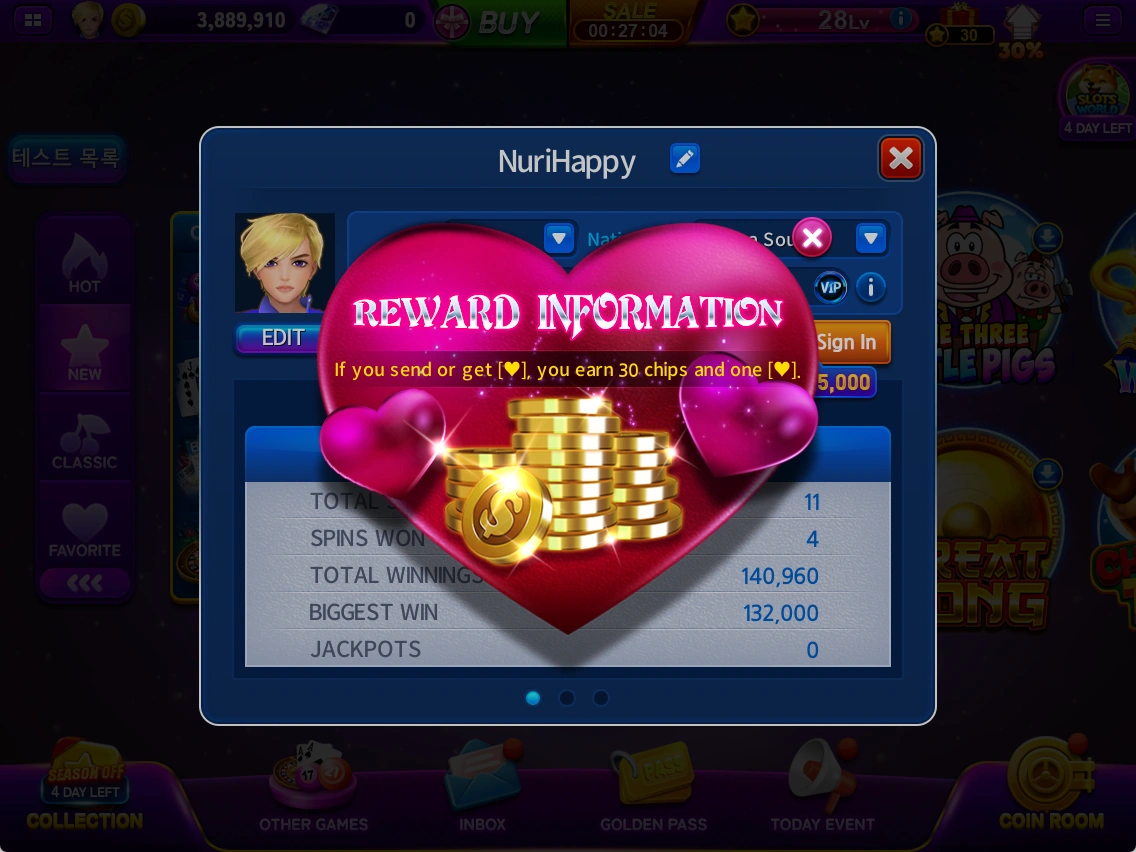
- Press information (i) beside the heart to read about rewards.
- When you receive a heart, you can also receive 30 chips.
- Send hearts to celebrate other players' big wins, level-ups and jackpots. Doing so does not deduct your own hearts or chips.
Inbox
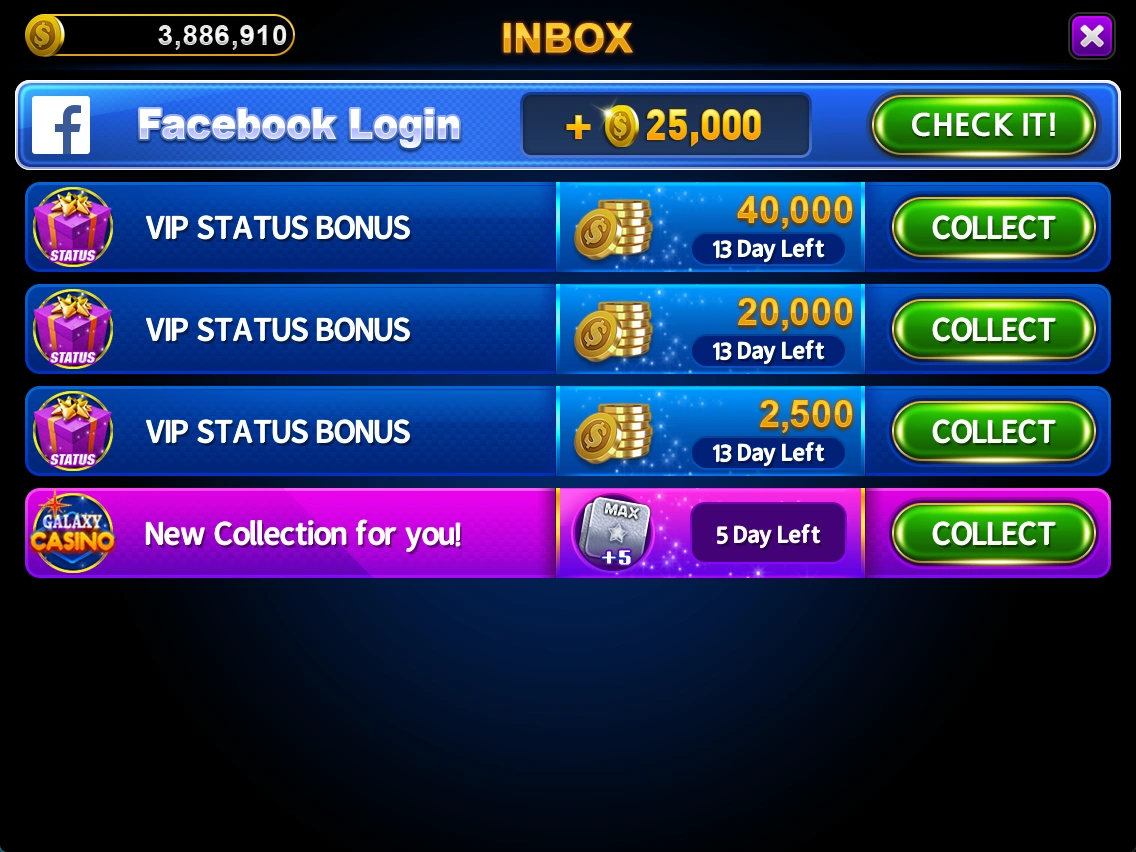
Check rewards sent by the game, including VIP tier-up rewards.
- Review reward details and the time left to claim them in INBOX.
- Press COLLECT to claim available rewards.
- Open CHECK IT! items to read their details.
Menu & sound settings
Access sign-in, support, nickname changes and sound settings in one place.
Account and support
Sign in links a social account. Support opens customer support. Change Nickname changes your nickname. Your Player ID is also shown at the bottom of the menu.
Sound settings
The music-note button toggles background music; the speaker button toggles sound effects.

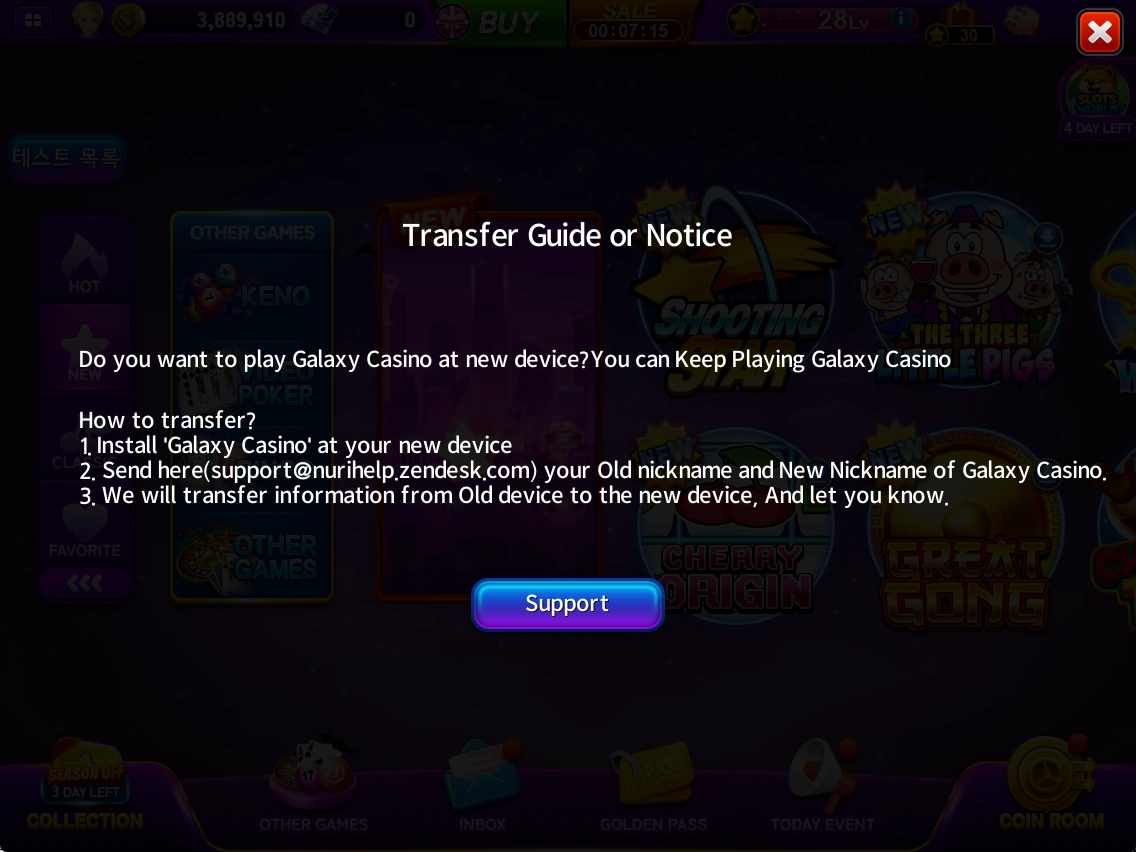
Continuing on a new device
For a linked account, sign in with the same social account on your new device. For a guest account, you can request a transfer from support.
- Install Galaxy Casino on your new device.
- Check the nicknames on both your old and new devices.
- Send both nicknames through Support or to [email protected] and request an account transfer.
- After support confirms the transfer is complete, check your new device.
Game information & policies
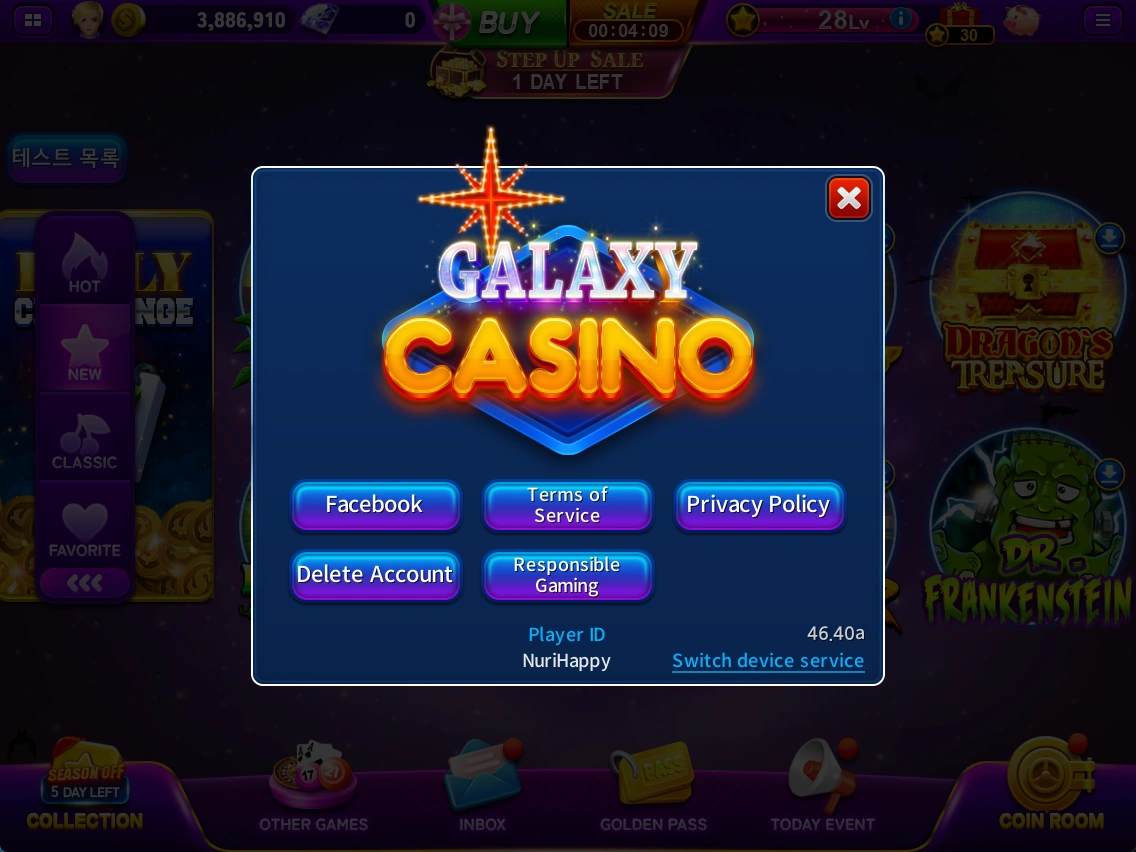
Find the game version, Player ID, official links and account deletion menu.
- Read the policies under Terms of Service, Privacy Policy and Responsible Gaming.
- Delete Account opens account deletion information. Review the on-screen conditions before proceeding.
- Include the game version and Player ID when contacting support to help identify your issue.
See the latest in-game information for prices, rewards, events and applicable conditions.
Social sign-in
Link a social account to continue playing on a new device by signing in with the same account.